SceneShift Documentation
SceneShift is a terminal-based process optimizer for Windows. It helps you manage system resources by allowing you to quickly kill, suspend, or restore background applications.
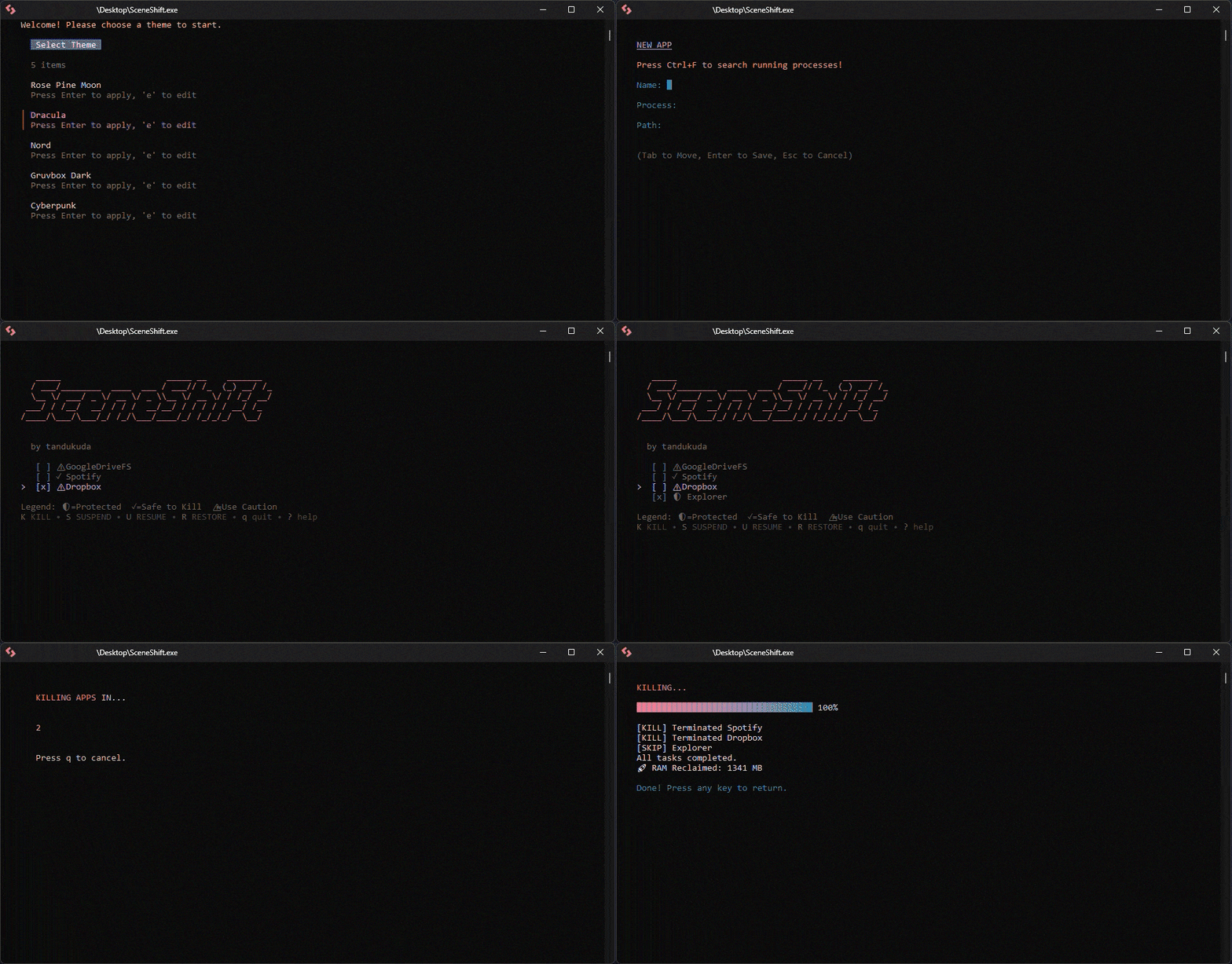
What SceneShift Solves
Modern Windows systems accumulate background processes over time. Game launchers, update services, chat applications, and browser tabs consume RAM and CPU resources even when not actively in use.
SceneShift exists to: - Reduce manual task management before performance-critical work - Make system resource optimization repeatable and consistent - Provide transparency into which processes are consuming resources - Enable quick switching between different performance states
Core Concepts
Modes
SceneShift offers four process management modes:
Kill Mode: Force-terminate processes to reclaim maximum resources. Useful when you need immediate RAM availability.
Suspend Mode: Pause processes without closing them. The process state is preserved in memory while CPU usage drops to zero. Ideal for keeping applications ready to resume.
Resume Mode: Unpause suspended processes. All threads continue execution from where they were frozen.
Restore Mode: Relaunch terminated applications using their stored executable paths.
Presets
Presets are named configurations that group applications together. Each preset can be triggered with a single keypress, allowing you to switch your system into different performance states instantly.
Examples: - Gaming Mode: Kill Discord, Spotify, Chrome, game launchers - Work Mode: Kill entertainment apps, keep communication tools - Streaming Mode: Suspend everything except streaming software
Safety Levels
Applications are categorized by safety level to prevent accidental system instability:
Protected: Critical Windows processes that cannot be terminated or suspended. These are essential for system operation.
Safe: Applications verified as safe to terminate. These are typically user-level programs that can be closed without system impact.
Caution: Processes that may affect system functionality. Terminating these might cause unexpected behavior.
Session Management
Session history tracks all operations performed during your current SceneShift session. You can review what you've done and undo the most recent operation if needed.
Getting Started
Installation
SceneShift requires Windows 10 or newer and must run with Administrator privileges for process management.
The recommended installation method is via Scoop package manager. Manual installation is also supported.
First Launch
On first launch, SceneShift creates a default configuration and prompts you to select a color theme. The interface then displays the main menu where you can begin adding applications to manage.
Basic Workflow
- Add applications you want to manage (press 'n')
- Select applications using arrow keys and spacebar
- Choose an action (Kill, Suspend, Resume, or Restore)
- Confirm during the 5-second countdown
- Review results and return to the main menu
Configuration
All settings are stored in human-readable YAML files in the same directory as the executable. You can edit these files directly or use the built-in management interfaces.
Use Cases
For Gamers
Free RAM before launching resource-intensive games by suspending or killing background applications. Resume everything after your gaming session ends with a single command.
For Developers
Terminate notification services, update checkers, and communication apps before compiling large projects or running resource-intensive development tasks.
For Content Creators
Ensure stable frame rates during recording or streaming by eliminating background CPU usage. Suspend applications rather than killing them to preserve your workflow state.
For 3D Artists
Maximize available RAM before starting long render jobs. Suspend all non-essential applications to free memory while keeping your workflow intact for when the render completes.
Safety and Responsibility
SceneShift provides direct access to Windows process management. While the software includes safeguards for critical system processes, users are responsible for understanding the impact of their actions.
Best practices: - Save your work before running operations - Test new presets in non-critical situations first - Review the exclusion list to understand which processes are protected - Back up your configuration before making major changes
Additional Resources
For detailed usage instructions, see the Usage Guide.
For troubleshooting common issues, see the Troubleshooting section.
For information about configuration options, see the Configuration Guide.